NinjaOne integration
NinjaOne is a comprehensive remote monitoring and management (RMM) platform that helps IT teams monitor, manage, and secure endpoints across their organization.
The Nanitor-NinjaOne integration connects your RMM data with Nanitor's asset management, automatically synchronizing device information and enabling enriched visibility into your IT infrastructure.
What this integration provides:
- Automated device synchronization from NinjaOne to Nanitor
- Enriched asset records with RMM data (agent status, last check-in, organization)
- Automatic device matching based on serial numbers and hostnames
- Bi-directional visibility between your RMM and asset management platforms
Prerequisites:
- Administrator access to your NinjaOne account
- Organization Admin role in Nanitor
- NinjaOne deployment with active devices
- Your Nanitor instance URL (e.g.,
company.nanitor.netfor Cloud hosted, or your configured domain/hostname for self-hosted)
Overview
This integration uses OAuth2 authentication to securely connect Nanitor with NinjaOne. The integration enables automated bi-directional communication:
- Device data flows from NinjaOne to Nanitor, enriching asset records with RMM information
- Synchronization occurs every 4 hours, with manual sync available on-demand
- Automatic device matching links NinjaOne devices to existing Nanitor assets using serial numbers as the primary method
The integration supports monitoring, management, and control scopes, allowing Nanitor to retrieve comprehensive device information from your NinjaOne deployment.
Setup in NinjaOne
Follow these steps exactly to create credentials that will work with Nanitor.
Step 1: Access API settings
Sign in to your NinjaOne account as an administrator.
Navigate to Administration → Apps → API.
Step 2: Create client application
Click Add to create a new client application.
Configure the application with the following settings:
- Application platform: Select API Services (machine-to-machine)
- Scopes: Check Monitoring, Management, and Control
- Grant Types: Check Authorization code, Client credentials, and Refresh token
Scope Selection
All three scopes (Monitoring, Management, Control) are required for the integration to function properly. Ensure all are selected.
Step 3: Note your credentials
After creating the application, NinjaOne will display your credentials:
- Client ID
- Client Secret
Copy both values immediately - you'll need them to configure the integration in Nanitor.
Client Secret Security
The Client Secret is shown only once. If you lose it, you'll need to regenerate it from the NinjaOne API settings page.
Step 4: Configure redirect URL
The redirect URL is automatically configured by Nanitor during the authentication process. The URL format varies based on your deployment:
- Cloud hosted:
https://[your-company].nanitor.net/organization/[id]/ninjaone/authenticate - Self-hosted:
https://[your-nanitor-instance]/organization/[id]/ninjaone/authenticate
Automatic Redirect Configuration
You don't need to manually set the redirect URL. Nanitor handles this automatically during the OAuth2 flow based on your instance configuration. For self-hosted deployments, this will use your configured domain, hostname, or IP address.
Setup in Nanitor
Once you have obtained your credentials from NinjaOne, configure the integration in Nanitor.
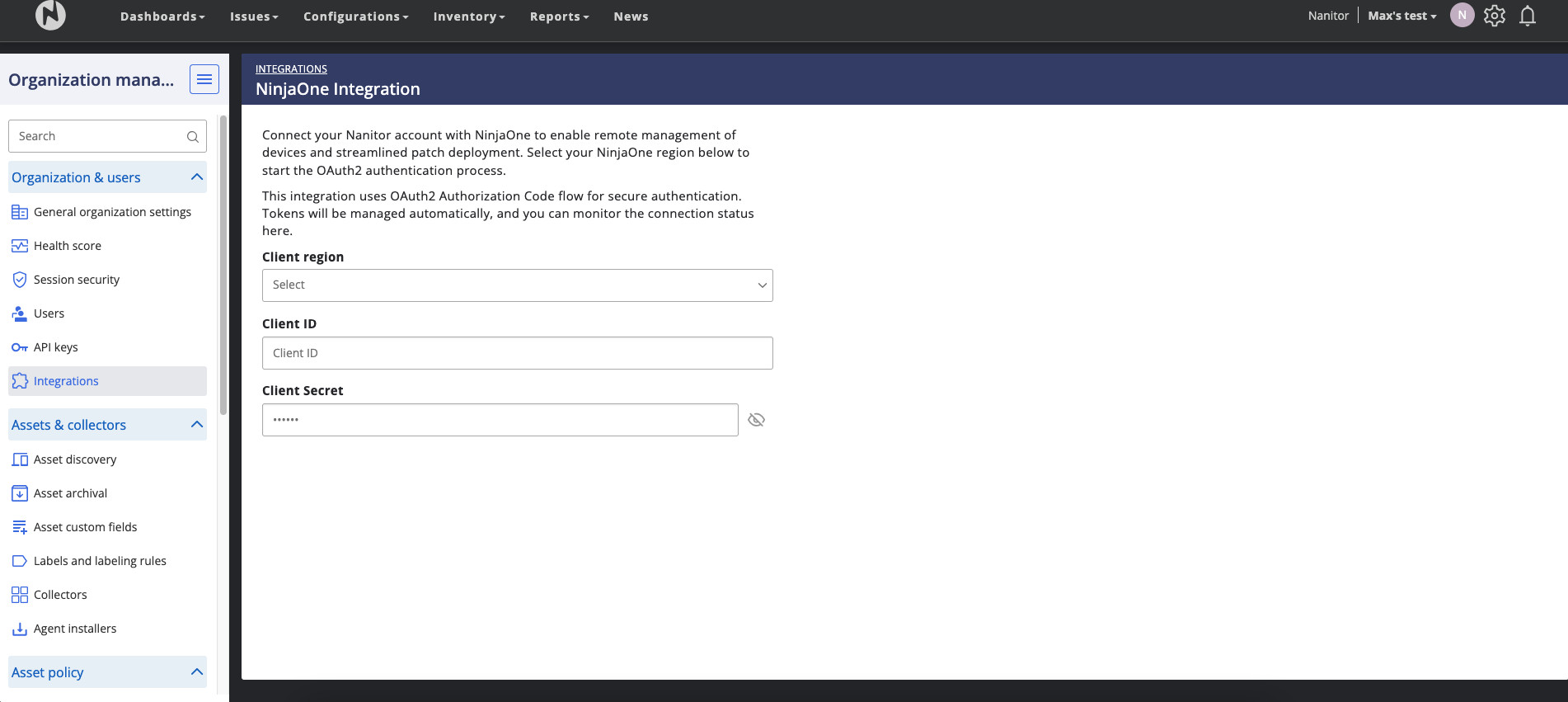
Navigate to Organization Management → Integrations → NinjaOne.
To configure the integration:
- Enter your Client ID from NinjaOne
- Enter your Client Secret from NinjaOne
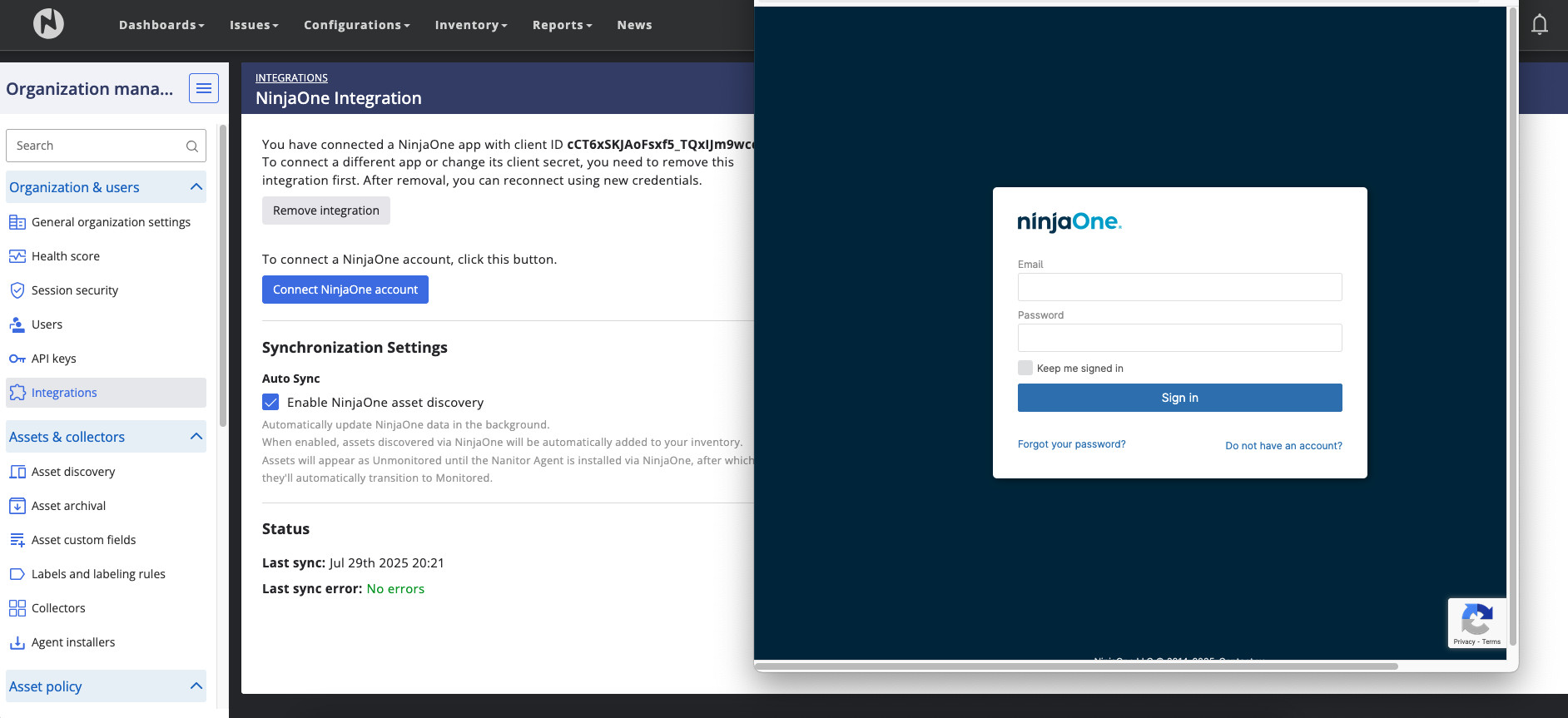
- Click Authenticate
- You will be redirected to NinjaOne to authorize the connection
- Review the permissions and click Grant Access
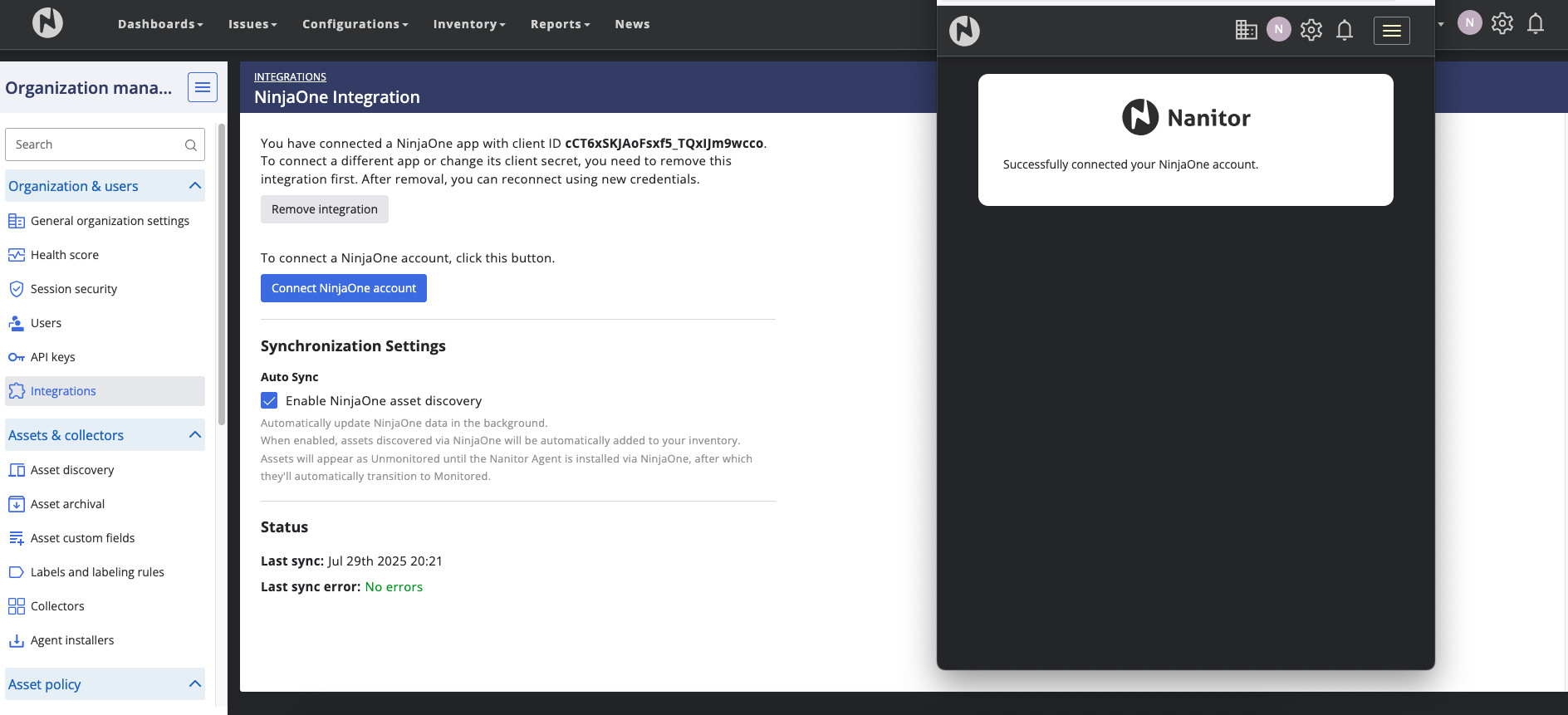
- You'll be redirected back to Nanitor
After successful authentication, Nanitor will begin synchronizing device data from NinjaOne. The first sync may take several minutes depending on the number of devices in your NinjaOne deployment.
What gets synchronized
Data flow
From NinjaOne to Nanitor:
- Device inventory (computers, servers, mobile devices)
- Device properties (hostname, serial number, operating system, OS version)
- RMM agent status (version, last check-in time)
- Organization and location data
- Device management state
Synchronization frequency: Every 4 hours (automatic), with manual sync available
Device matching
Nanitor automatically matches NinjaOne devices to existing Nanitor assets using:
- Serial number (primary matching method)
- Hostname (fallback if serial number unavailable)
When a match is found, the Nanitor asset is enriched with NinjaOne data. Devices without matches appear as new assets in Nanitor's inventory.
Monitoring and troubleshooting
Connection status
To check your integration status:
Navigate to Organization Management → Integrations → NinjaOne.
The page displays:
- Connection status (Connected / Disconnected)
- Last successful sync (timestamp)
- Number of devices synchronized
- Sync errors (if any)
Manual Sync
If you've just added devices in NinjaOne, you can trigger an immediate sync instead of waiting for the scheduled 4-hour sync. Click the Sync Now button on the Integrations page.
Common issues
Problem: Authentication fails with "Invalid client credentials"
Solution: Verify you copied the Client ID and Client Secret correctly from NinjaOne. Ensure there are no extra spaces at the beginning or end. If the problem persists, regenerate the credentials in NinjaOne and try again.
Problem: Devices not appearing in Nanitor after sync
Solution: Check that your NinjaOne application has all three required scopes selected (Monitoring, Management, Control). Verify the devices are active in NinjaOne. Try triggering a manual sync from the Integrations page.
Problem: "Redirect URL mismatch" error during authentication
Solution: This typically occurs if the NinjaOne application is misconfigured. Ensure you selected "API Services (machine-to-machine)" as the application platform. Delete the application in NinjaOne and recreate it following the setup steps exactly.
Problem: Some devices synced but others are missing
Solution: Check that missing devices have accurate serial numbers in NinjaOne. Devices without serial numbers may not match correctly. Verify that all devices are in the same NinjaOne organization you authenticated with.
Support
If you continue experiencing issues, contact Nanitor Support with:
- Your Nanitor organization ID
- Screenshot of any error messages
- Timestamp when the issue occurred
- Number of devices in NinjaOne vs. number synced to Nanitor
Technical details
Authentication
This integration uses OAuth2 for secure authentication:
- Initial setup: Uses Authorization Code flow where you authenticate through NinjaOne's website and grant Nanitor access to your account
- Background synchronization: Uses Client Credentials flow to automatically sync data every 4 hours without requiring any user interaction
- Token management: Nanitor automatically handles token refresh and renewal - no maintenance required after initial setup
All communication between Nanitor and NinjaOne is encrypted and secure.
Revoking Access
To disconnect the integration, you can either delete it from Nanitor's Integrations page or remove the application from NinjaOne's API settings. Both methods immediately stop data synchronization.