Vanta integration
Vanta is a security compliance platform that helps organizations achieve and maintain compliance with standards such as SOC 2, ISO 27001, HIPAA, and GDPR through automated monitoring and evidence collection.
The Nanitor-Vanta integration synchronizes user data between both platforms, ensuring your compliance monitoring in Vanta accurately reflects your active Nanitor users without manual updates.
What this integration provides:
- Automated user list synchronization from Nanitor to Vanta
- Real-time updates when users are added, modified, or removed in Nanitor
- Reduced manual compliance data entry
- Accurate personnel records for compliance audits
Prerequisites:
- Administrator access to your Vanta account
- Vanta Business or Enterprise plan (integration features not available on Free tier)
- Organization Admin role in Nanitor
- Access to Vanta's Developer Console
- Your Nanitor instance URL (e.g.,
company.nanitor.netfor Cloud hosted, or your configured domain/hostname for self-hosted)
Overview
This integration uses OAuth2 Client Credentials authentication to securely connect Nanitor with Vanta. The integration enables automated one-way synchronization:
- User data flows from Nanitor to Vanta, keeping your compliance records current
- Synchronization occurs every 6 hours, with manual sync available on-demand
- Automatic user account creation in Vanta for active Nanitor users
- User account updates when user details change in Nanitor
The integration specifically synchronizes user account information to maintain accurate personnel records for your compliance monitoring and audit trail.
Setup in Vanta
Follow these steps to create the necessary credentials and resource configuration in Vanta.
Step 1: Access Developer Console
Sign in to your Vanta account as an administrator.
Click Settings in the top-right corner and select the Developer Console tab.

Step 2: Create application
In the Developer Console, click Create to add a new application.
Fill out the Create an Application form:
- Application name: Enter a descriptive name (e.g., "Nanitor Integration")
- App type: Select Build integrations
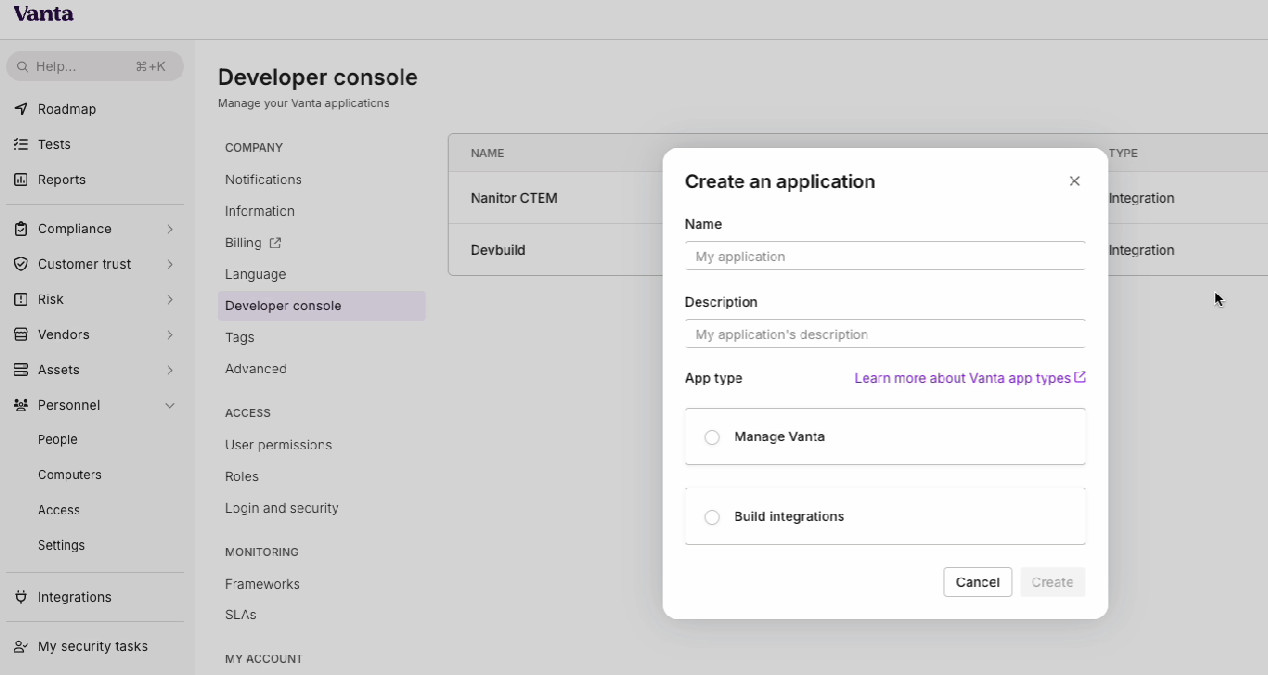
Click Create Application to save.
Application Naming
Use a descriptive name like "Nanitor Integration" or "Nanitor User Sync" to easily identify this application later.
Step 3: Get credentials
After creating the application, navigate to Manage Application → Application Info.
Here you will obtain your authentication credentials:
- Client ID: Displayed on the Application Info page
- Client Secret: Click Generate Secret to create a new secret
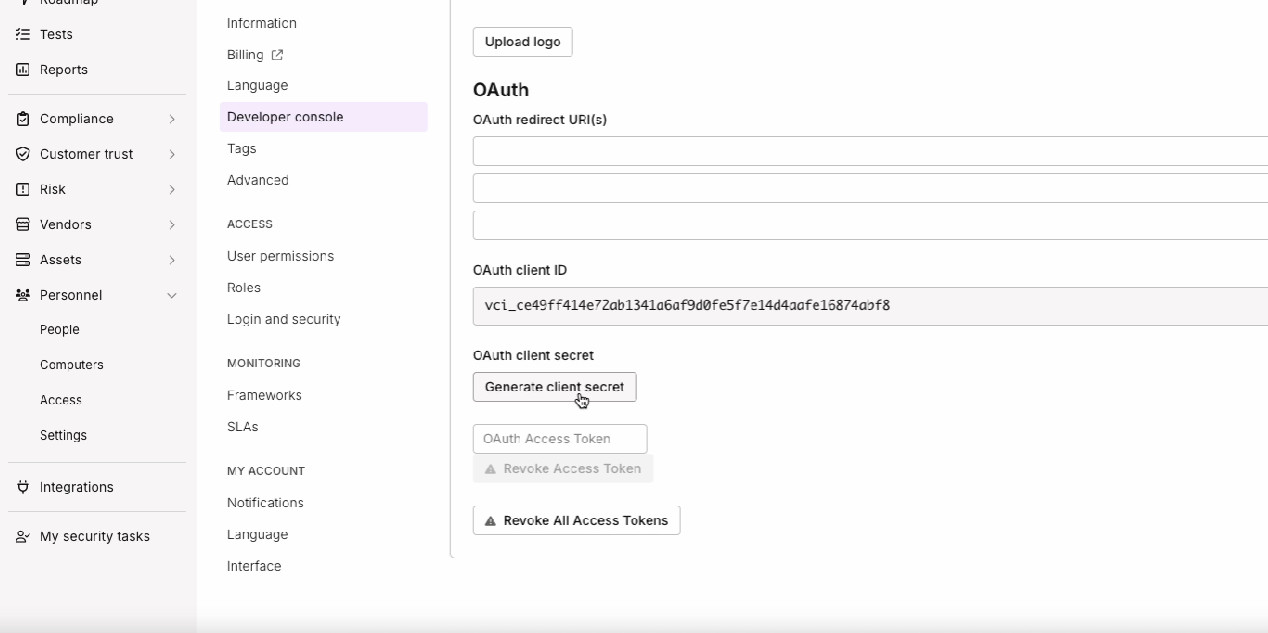
Copy both the Client ID and Client Secret immediately - you'll need them to configure the integration in Nanitor.
Client Secret Security
The Client Secret is shown only once when generated. Store it securely. If you lose it, you'll need to generate a new secret from the Application Info page.
Step 4: Create resource
Open the Resources tab in your Vanta application.
Click Create Resource and fill out the form:
- Resource name: Enter a descriptive name (e.g., "Nanitor Users")
- Base resource type: Select UserAccount
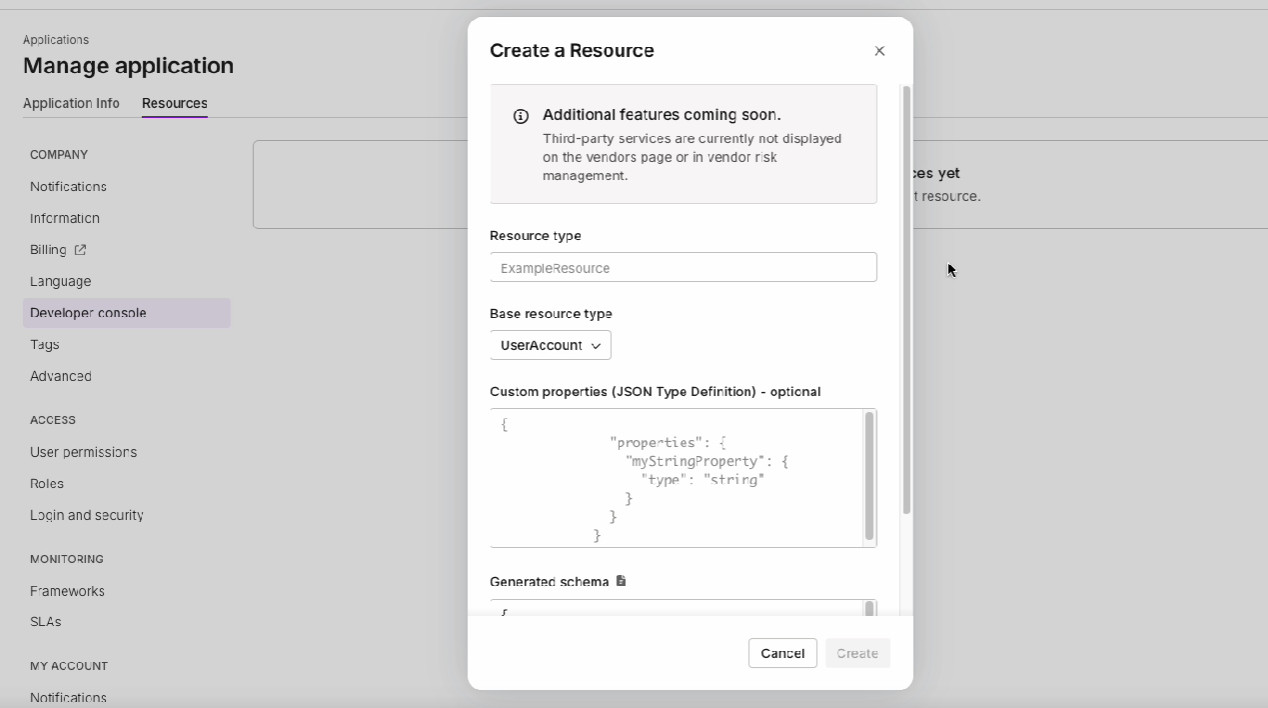
After creating the resource, note the Resource ID - this identifier is required for Nanitor setup.
Resource ID Purpose
The Resource ID tells Vanta which type of data Nanitor will be syncing. The UserAccount type is used to track personnel for compliance purposes.
Setup in Nanitor
Once you have obtained your credentials and Resource ID from Vanta, configure the integration in Nanitor.
Navigate to Organization Management → Integrations → Vanta.
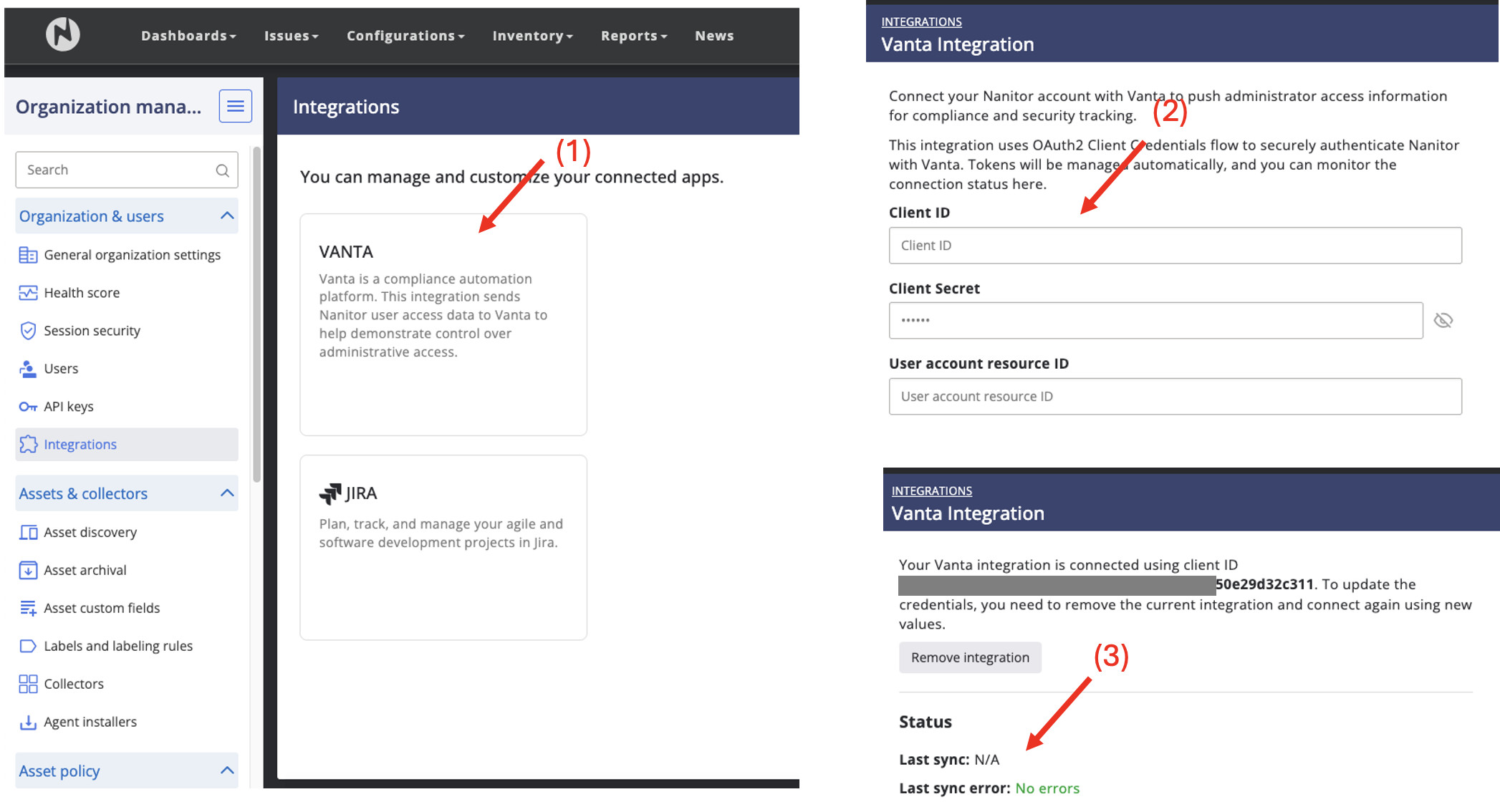
To configure the integration:
- Enter your Client ID from Vanta
- Enter your Client Secret from Vanta
- Enter your User account resource ID from Vanta
- Click Save
After saving, Nanitor will authenticate with Vanta and begin synchronizing your user list. The first sync occurs immediately upon successful configuration.
Initial Sync
The first synchronization may take a few minutes depending on the number of users in your Nanitor organization. Subsequent syncs are faster as they only process changes.
What gets synchronized
Data flow
From Nanitor to Vanta:
- Active Nanitor user accounts
- User email addresses
- User display names
- User status (active/inactive)
- Account creation dates
Synchronization frequency: Every 6 hours (automatic), with manual sync available
User synchronization logic
Nanitor synchronizes all active users in your organization to Vanta:
- New users in Nanitor are created as user accounts in Vanta
- Updated users in Nanitor have their Vanta records updated
- Deactivated users in Nanitor are marked as inactive in Vanta
- Deleted users in Nanitor are removed from Vanta
This ensures your Vanta compliance monitoring always reflects your current Nanitor user base.
Monitoring and troubleshooting
Connection status
To check your integration status:
Navigate to Organization Management → Integrations → Vanta.
The page displays:
- Connection status (Connected / Disconnected)
- Last successful sync (timestamp)
- Number of users synchronized
- Sync errors (if any)
Manual Sync
If you've just added users in Nanitor and need them in Vanta immediately, you can trigger a manual sync from the Integrations page instead of waiting for the scheduled 6-hour sync.
Common issues
Problem: Authentication fails with "Invalid credentials" error
Solution: Verify you copied the Client ID and Client Secret correctly from Vanta. Ensure there are no extra spaces. If the problem persists, generate a new Client Secret in Vanta and update the integration configuration.
Problem: "Invalid Resource ID" error
Solution: Verify you copied the Resource ID correctly from Vanta. Ensure the resource type is set to "UserAccount". Double-check the Resource ID in Vanta's Resources tab and update it in Nanitor.
Problem: Users not appearing in Vanta after sync
Solution: Check that the users are active in Nanitor. Verify your Vanta application has the correct permissions. Try triggering a manual sync from the Integrations page.
Problem: Some users synced but others are missing
Solution: Verify that missing users have valid email addresses in Nanitor. Check that the users are not in a deactivated state. Review the sync log on the Integrations page for specific error messages.
Support
If you continue experiencing issues, contact Nanitor Support with:
- Your Nanitor organization ID
- Your Vanta Resource ID
- Screenshot of any error messages
- Timestamp when the issue occurred
- Number of users in Nanitor vs. number synced to Vanta
Technical details
Authentication
This integration uses OAuth2 Client Credentials authentication:
- Simple setup: Unlike integrations requiring web-based authorization, this integration only needs the Client ID, Client Secret, and Resource ID you created in Vanta
- Automatic token management: Nanitor handles token refresh automatically - no maintenance required after initial setup
- Secure communication: All data transfers between Nanitor and Vanta use encrypted HTTPS connections
Data privacy
User data transmitted to Vanta includes only:
- Email addresses
- Display names (first and last name)
- Account status (active/inactive)
- Account creation date
No sensitive data such as passwords, two-factor authentication secrets, or session tokens are transmitted.
Revoking Access
To disconnect the integration, you can either delete it from Nanitor's Integrations page or delete the application from Vanta's Developer Console. Both methods immediately stop data synchronization.